Training
AI Coach
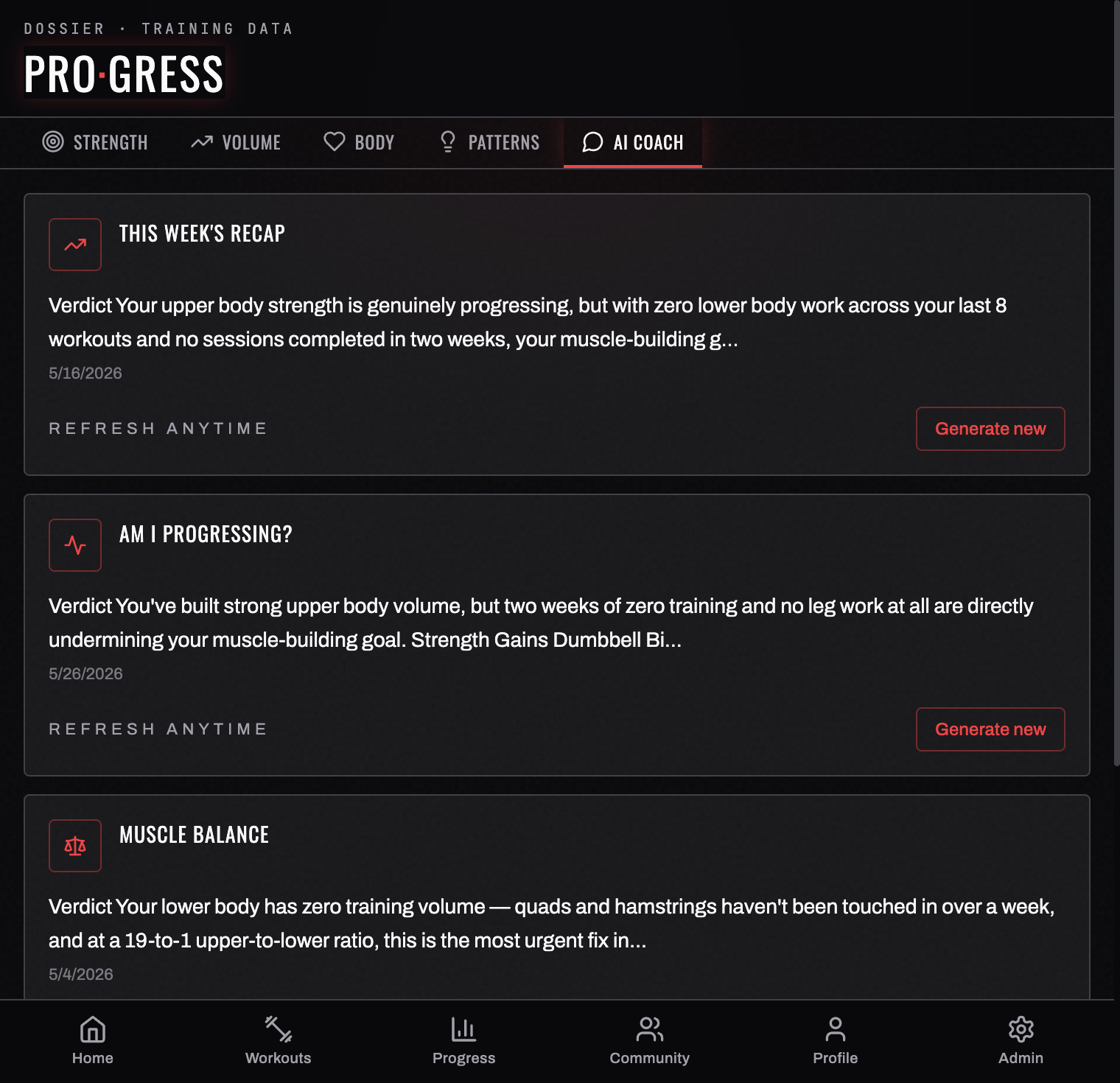
AI Coach gives you plain-language analysis of your own training data — grounded in your logged workouts, not generic advice.
How it works
You pick a topic, BurnGauge assembles the relevant data, and you get a written report. The four topics are:
| Topic | What it answers |
|---|---|
| This week's recap | Wins, gaps, and what to fix next |
| Am I progressing? | A lift-by-lift trajectory check |
| Muscle balance | Where your volume is over- or under-cooked |
| Should I deload? | A read on fatigue and recovery debt |
Opening a topic shows your last report
Tapping a topic opens the report it already holds, under a line saying how old it is — GENERATED JUST NOW, GENERATED 6 HOURS AGO, GENERATED 1 WEEK AGO. Nothing is generated by opening it, so looking at what you already have never costs you a generation.
Under the report sits a single button:
| The button says | What it means |
|---|---|
| GENERATE NEW REPORT | You can run this topic now; it replaces what's on screen as the latest |
| GENERATE REPORT | You've never run this topic — this is your first |
| GENERATE IN 23 HOURS | The topic is cooling down. The number is the total hours left, so a week reads as 168 hours, not "6 days" |
A locked button is never a mistake — each topic has its own cooldown so the reports stay worth reading. If a generation is refused (a cooldown, a daily limit, or your monthly AI budget), the screen says so in a sentence and your previous report stays on screen.
Older reports for a topic are a tap away on the same screen, each labelled by age.
You accept a disclaimer first
The first time you run any AI feature, BurnGauge asks you to accept a short health disclaimer — the Coach gives advisory, non-prescriptive guidance about training, not medical advice. Until you accept it, running a topic returns "Please accept the AI coaching disclaimer to continue." rather than an analysis.
What it sees (and doesn't)
The Coach reads structured signals — your sets, volume, e1RM, muscle balance, check-in metrics, and, if connected, wearable recovery and activity.
Your private free-text notes are never sent to the AI. That's a hard privacy rule in BurnGauge, not a setting.
Where to find it
Progress → AI COACH, or the OPEN AI COACH → shortcut on the weekly calendar when the coach has a read on your week. The Ask the Coach card on Progress → Patterns also lands you on the four topics.
Availability
AI Coach is a Pro feature, with per-topic cooldowns so each report has new training behind it.
The Coach needs a connection. Reports you already have stay readable while the page is open, but if BurnGauge can't reach the server when you open Progress, the page shows an error with a RETRY button rather than stale or invented data — the rest of the app keeps working.
Related: Progress & insights · Connect a wearable.
Turn your workouts into intelligence
Log your lifts, follow a program, and let BurnGauge surface what's working. Free to start — upgrade to Pro for the full analytics + AI coaching stack.