Training
Your weekly calendar — swap & move days
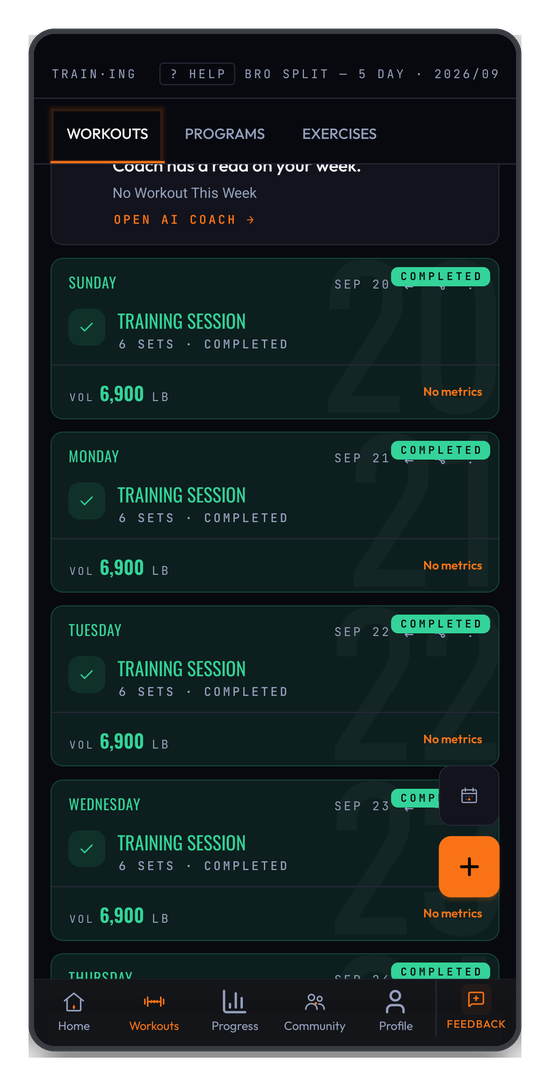
The Workouts → WORKOUTS tab opens on your weekly calendar — one card per day (Sun–Sat), showing that day's routine (or Rest), with the date range and the week's completion count (e.g. 0 / 4 DONE) up top. Use ‹ › to move between weeks, or the month view button for the month.
The header across the top names the program driving the week, or FREESTYLE if you aren't running one.
What a completed day shows
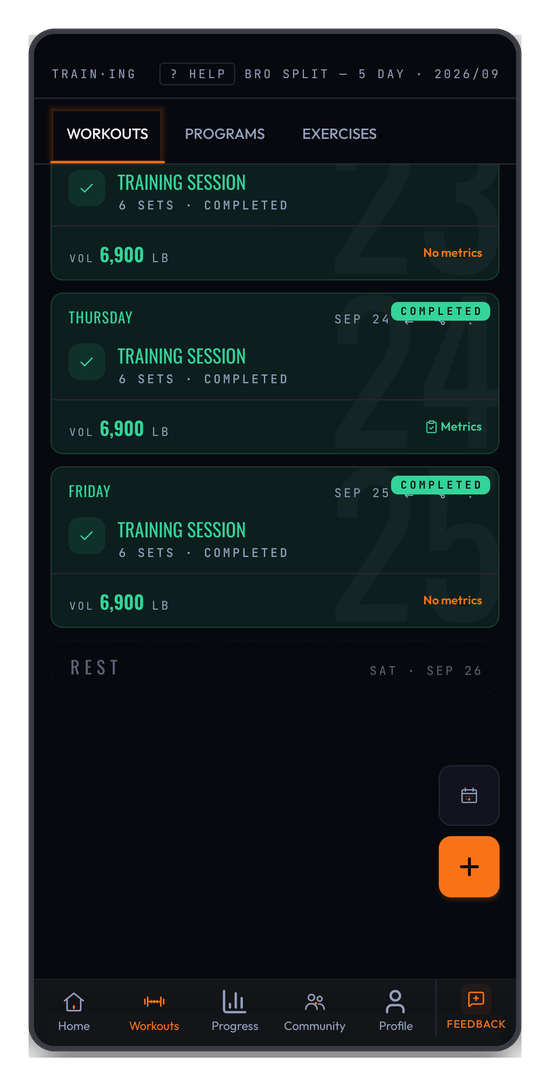
Once a session is logged, its card carries the session name, the sets you completed, a COMPLETED badge, and the VOL that day moved — so the calendar doubles as a week-at-a-glance volume read without opening anything.
The coach's read on your week
On the current week, above the day cards, a COACH'S READ card gives today's read on your week, with OPEN AI COACH → to go deeper. It is today's note, so it is not shown when you browse to another week. See AI Coach.
Each day card carries three small controls in its top-right corner: Swap day, Share workout, and Workout options.
Swap a day's routine with another day
Use this when you want, say, Friday's "Legs B" to happen on a different day.
- On a scheduled day, tap Swap day.
- The "Swap with which day?" sheet opens with a button for each of the other six days (the current day is greyed out). Each button shows that day's routine so you know what you're swapping with.
- Tap the day you want — the two days trade routines.
Share a workout
Share workout turns that session into an image card — the workout's name, date and headline numbers, with a NEW PR! badge when the session set a personal record — and opens your device's share sheet so you can post it or send it anywhere. On a computer whose browser has no share sheet, the image downloads instead. It's a picture, not a link: it doesn't open anything in your account. You can share the same card from the screen that appears when you finish a workout.
Drag to reorder
Every day card is draggable. Press and hold a card (it reads "Drag to reorder") and drop it on another slot to rearrange your week by hand — handy for nudging a session a day earlier or later.
Delete a day
Workout options holds the rest, including clearing the day's routine. A cleared day becomes a REST day, which the calendar shows as its own muted card rather than a gap.
Starting a session
Tapping a scheduled day card (anywhere outside those three controls) opens that day in the workout logger, pre-filled with its exercises — ready to log. Today's card shows Start now; a future card shows Tap to begin; a missed past day shows Make up this session.
Month view and adding a day
Two floating buttons sit at the bottom-right of the calendar: a calendar icon switches to the month view, and the + adds a session to the week.
Related: Programs · The workout logger.
Turn your workouts into intelligence
Log your lifts, follow a program, and let BurnGauge surface what's working. Free to start — upgrade to Pro for the full analytics + AI coaching stack.